Before you sign in to PHMAYON888
A successful PHMAYON888 login starts with knowing where you are signing in and which account details belong to that destination. This guide explains preparation, common errors and practical recovery checks. It does not collect your password or provide an account login form. Account actions take place at the destination service, where the available fields, verification methods and recovery options may differ from the general examples described here.
Before opening a sign-in page, make sure you can access the contact method associated with your account. If the service requests verification, you may need your phone or mailbox during the process. Choose a device you trust, close unrelated sign-in tabs and allow enough time to complete the steps without rushing. This reduces confusion when a code, confirmation message or unexpected account prompt appears.
Separate a loading problem from an account problem. If the page does not open at all, check the route and connection first. If it opens and displays a message after you submit your details, read that message before changing browser settings. Repeatedly trying the same information without understanding the error can make troubleshooting harder and may trigger protective limits at the destination.
Keep your credentials private. Do not send passwords, one-time codes or recovery links through a chat conversation to demonstrate that your account belongs to you.
Check the login destination
Begin from a destination you have checked rather than a link in an unexpected message. The homepage lists the published access routes, while a configured login button may lead directly to a sign-in destination. After opening either type of link, inspect the final address in your browser. Redirects can change the visible domain, so review the address after loading finishes and before entering private information.
Read the complete hostname carefully. Extra words, different endings and subtle spelling changes can be easy to miss on a small screen. A logo, orange colour scheme or familiar page title is not proof of identity. HTTPS protects the connection to the address shown, but its presence alone does not establish who operates the website. If the destination is unexpected, stop and confirm it using a contact channel you already trust.
Do not continue through a certificate warning just because you want to reach your account quickly. Record the warning without including private data and check the route again. Likewise, a page asking you to install an unrelated application, browser extension or device profile before signing in needs further review. Ordinary account troubleshooting should not require giving an unknown person control of your device.
Follow the PHMAYON888 login steps
The exact sign-in form is controlled by the destination. Read its labels and follow its instructions rather than assuming every service uses the same account identifier. A form may request a username, telephone number or email address. Use the identifier associated with your existing account and keep any country-code selection consistent with the service's displayed format.
- Open the checked destination and wait for the sign-in page to finish loading.
- Read the account field label and enter the identifier used for your account.
- Enter your password carefully, checking keyboard language and accidental spaces.
- Complete any verification requested by the destination through the process you initiated.
- Submit once, wait for the result and review any message before attempting another sign-in.
If the form appears unresponsive, wait briefly before tapping again. Several rapid submissions can produce overlapping messages or repeated verification requests. When the result is unclear, check whether the page has moved to an account area or whether a message appears above or below the form. On a phone, the keyboard may hide part of the page, so dismiss it and review the full screen.
After a successful sign-in, confirm that you have reached the expected account before changing details or completing another action. If the displayed identifier is unfamiliar, sign out and investigate rather than continuing. A shared device or password manager may have supplied information belonging to another person who previously used the browser.
Check account details and passwords
A rejected login does not always mean the password has changed. Start with the account identifier. Look for typing mistakes, a missing part of an email address or a phone number entered in a format different from the one requested. Check whether copied text includes spaces at either end. Avoid changing several fields simultaneously, because you will lose track of which correction affected the result.
Password entry can also be affected by keyboard settings. Check capital letters, symbols and the selected language. Mobile keyboards sometimes insert a space or change text when moving between fields. If the form provides a password visibility control, use it only when the screen is private. Hide the password again before taking screenshots or asking someone nearby to review an error.
A password manager can help maintain unique credentials, but review the entry it selects. Similar domains or multiple saved accounts can produce an incorrect match. Do not overwrite a saved password simply because one attempt failed. First verify the destination and account identifier. If you successfully reset the password, update the correct saved entry afterwards and remove obsolete duplicates you no longer need.
Handle verification codes carefully
If the destination requests a verification code, read where it says the code will be delivered. Check that the displayed contact hint matches a method you control. Delivery channels and waiting periods depend on the service; do not assume a code will arrive by text message when the page refers to email or an authenticator application. Use only the method offered in your own account process.
When a message does not arrive, inspect the information already entered and the on-screen instructions. For email, check relevant folders without opening unrelated links. For a phone, confirm that it can receive messages and has a working signal. Wait for the destination's stated resend period. Repeated requests may create several messages that arrive out of order, making it unclear which code is still valid.
Enter a code only in the session that requested it. If you restarted the process or switched tabs, review which request you are completing. Do not post the code in a group or send it to a support profile. An unexpected verification message may result from someone entering the wrong identifier or attempting access; it is not a reason to follow an unsolicited recovery link.
Use the available password recovery process
If you cannot remember the password, look for the recovery option on the checked destination. Its label may refer to a forgotten password, account recovery or sign-in assistance. Follow the instructions provided there. This guide does not establish that a particular recovery method is available, and it cannot reset account details on your behalf.
Start recovery in one browser tab and keep the process together. If a recovery message arrives, check that it corresponds to the action you just initiated and inspect its destination before continuing. Recovery links can contain private tokens. Do not forward them or include their full addresses in screenshots, public messages or a support request.
Choose a new password that is unique to the account. Avoid simply reusing the password from your email or another service. Once the change is confirmed, update the appropriate password manager entry and try the new credentials at the checked sign-in page. If the service offers session review or a way to end other sessions, review those options when you suspect unauthorised access.
If you no longer control the registered contact method, use the destination's published account recovery assistance. Explain which method is unavailable without sharing more personal information than necessary. Do not create another account solely to work around recovery unless the service explicitly instructs you to do so.
Understand common sign-in problems
Error messages are useful because they identify the stage at which the process stopped. Record the exact wording instead of paraphrasing it as “login does not work.” Some services intentionally use general messages that do not reveal whether an account exists. Treat such messages as a prompt to check your details, not as proof that a particular account status has been confirmed.
| What you see | What to check first |
|---|---|
| The page will not load | Destination address, connection and browser error. |
| Details are not accepted | Account identifier, keyboard settings and saved credentials. |
| A code does not arrive | Contact hint, delivery method and displayed waiting period. |
| Too many attempts | Stop retrying and follow the destination's waiting instructions. |
| The session expires | Multiple tabs, site data settings and connection changes. |
| An account restriction appears | The displayed notice and the service's account support process. |
A temporary attempt limit should be handled by pausing, not by submitting faster or switching repeatedly between routes. Follow any waiting instruction shown by the destination. If no period is stated, use its support process rather than assuming a fixed time. This website cannot determine the duration of a limit or remove a restriction imposed by another service.
If a message concerns account eligibility, review the service's stated requirements and contact its account support when clarification is needed. Changing a browser, connection or VPN setting does not resolve an eligibility decision. Keep network troubleshooting separate from questions about permissions, verification and account status.
Check your browser and mobile device
On a phone, first dismiss the keyboard and check the whole form. A validation message may appear near a field outside the visible area. Make sure you have not opened an old tab from a previous attempt. Starting a fresh tab at the checked destination can reduce confusion while preserving your existing browser data.
Browsers embedded inside messaging or social applications can behave differently from a standalone browser. If a sign-in flow does not complete inside one, consider opening the checked address in your usual browser. Do not copy an address containing a private recovery token into a public conversation while doing this. Keep any transfer between applications under your control.
If a password manager or extension interferes with the form, test one change at a time. A private window can help compare behaviour, but it may also have different cookie rules and will not automatically include your saved session. A successful test there suggests a browser-specific difference; it does not establish that the website is safe or that all existing data should be deleted.
Clear site data only after considering the consequences. Removing cookies may sign you out and erase a remembered device preference. Prefer controls for the affected site over clearing all browser data. Before making that change, ensure you still know your account identifier and can access any recovery method the service might request.
Troubleshoot the connection separately
If the sign-in page never loads, test another familiar website using the same connection. A failure across several sites points toward a broader network issue. Check whether a public Wi-Fi network requires its own sign-in screen, whether mobile data is enabled and whether the device has a usable signal. Follow the rules of any network you do not manage.
When other sites load normally, note the affected destination and try another published route once if one is available. Compare Wi-Fi and mobile data only when appropriate and be mindful of charges. Avoid changing DNS, VPN and browser settings together. A simple record of one change and one result is more useful than several simultaneous changes that cannot be evaluated.
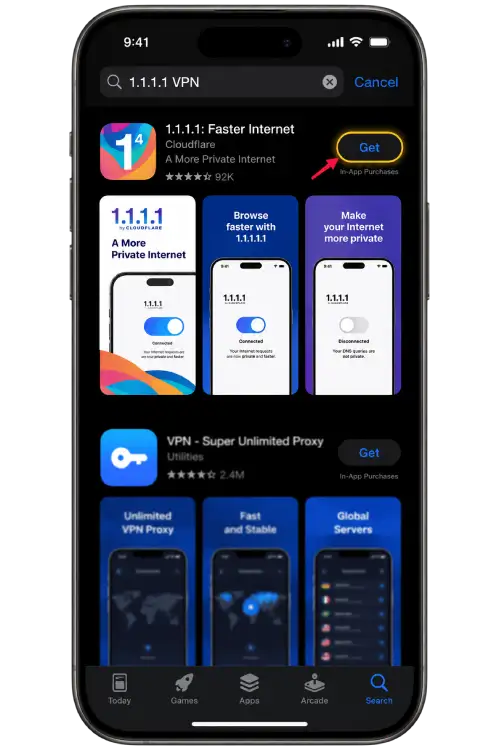
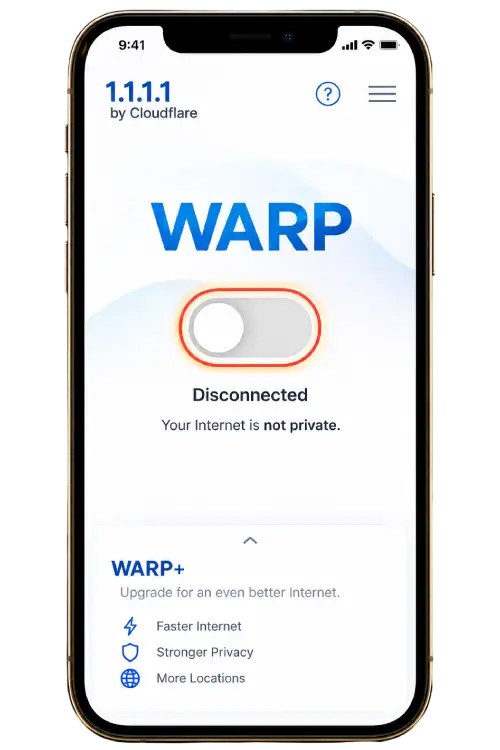
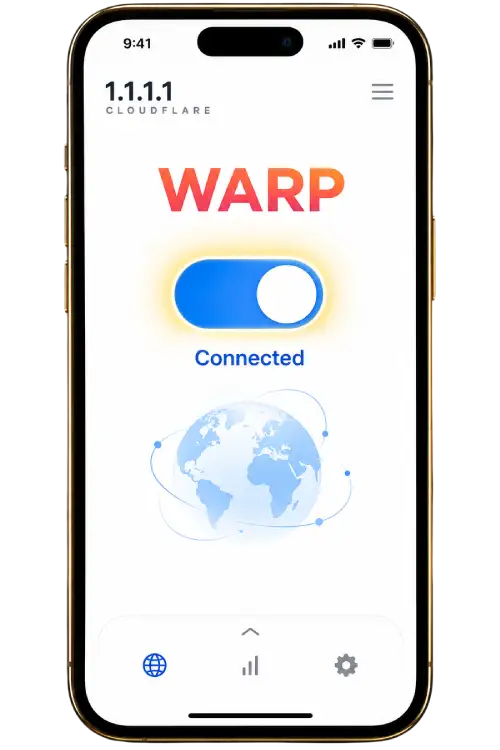
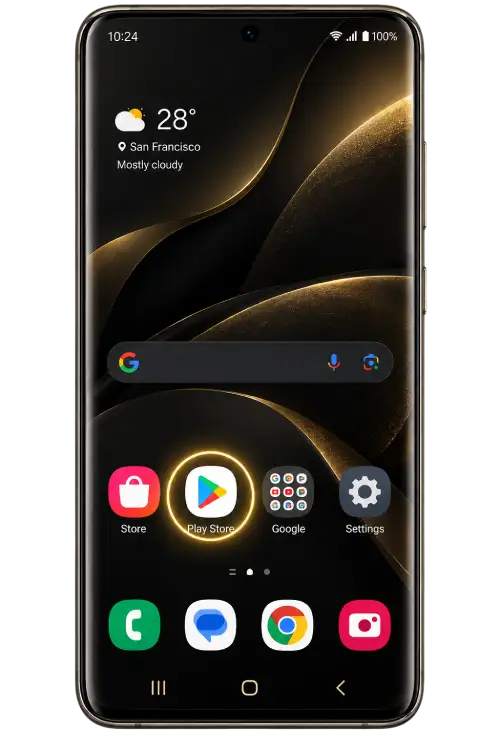
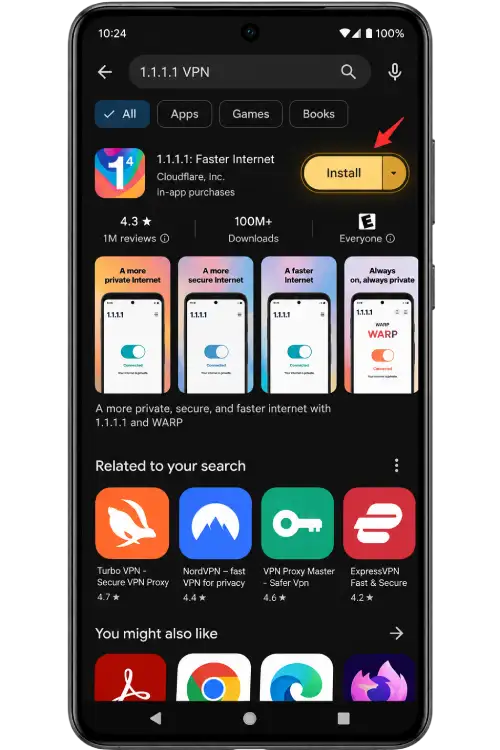
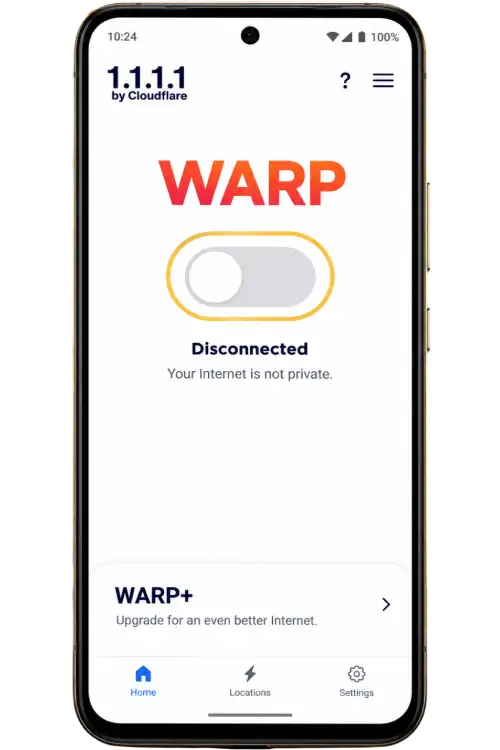
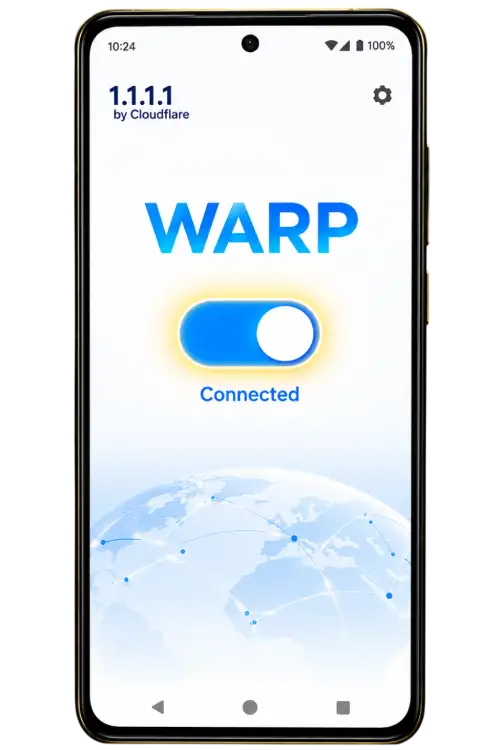
The VPN tutorial is available from the website's access and support sections. It explains device setup checks, not a guaranteed fix for every loading problem. A VPN does not correct account credentials or override account restrictions. If enabling a connection tool introduces a new error, reverse that change and compare the result before taking further action.
Manage sessions and shared devices
A login session can end for several reasons, including inactivity, a browser setting or a service-side security action. If you are returned to a sign-in page, inspect the address again before entering your details. Avoid keeping several active login forms open because a code or message from an earlier tab may no longer apply to the current process.
On a shared device, do not save your password or select a persistent sign-in option unless you understand who else can access the device. Sign out through the service's own control when finished, then close the relevant tabs. Closing a tab alone may leave an account session active. Check that the browser has not saved private downloads or recovery information during the visit.
If you suspect someone else has accessed the account, use the service's available security controls from a trusted device. That may include changing the password, reviewing sessions and checking recovery details where those features exist. Protect the associated email account as well. Do not rely on clearing local browser history to end a session on another device.
Recognise suspicious login requests
Be cautious when a message creates urgency and asks you to sign in through a newly supplied link. Claims about immediate closure, special account activation or a mandatory security fee should be checked independently. Open the destination through a route you have already reviewed rather than using the message itself as proof.
Do not grant remote access to your phone or computer to resolve an ordinary sign-in error. Someone controlling the screen may see passwords, codes, messages and other accounts. Also avoid sharing a screen while a password is visible or a recovery link is open. A carefully redacted screenshot of the error is usually more appropriate for explaining a technical symptom.
If you have already entered details at an unexpected address, stop using that page and secure the affected account through a checked destination. Change any reused password on other services, starting with important accounts such as email. Record what happened without keeping exposed credentials in a public note or support thread.
Prepare a useful support request
Describe the sequence leading to the problem. State whether the page failed to load, the form rejected the submission, verification did not complete or the session ended afterwards. Include the approximate time, destination domain, device type, browser and exact error wording. Mention the checks you performed and whether each one changed the result.
Share only the information necessary for the issue. Never include your password, complete verification code or recovery link. If a screenshot is useful, remove private contact details and account information before sending it. Use a published contact channel and inspect the account or address it opens, especially if someone later moves the conversation to another profile.
The Support guide covers broader connection and device checks. For website scope and published contact information, visit About & Contact. If your question concerns a specific account decision, use the destination service's own account assistance process, since a general website guide cannot inspect private account records.
PHMAYON888 login questions
Can I enter my password on this guide page?
No login form is provided here. This page explains preparation and troubleshooting. Use a checked destination for account actions, inspect the final address and enter your details only after confirming where you are signing in.
Why is there no Continue to Login button?
The button appears only when a login destination has been published. Its absence does not indicate an account problem. Review the homepage's available access routes or check published contact information if you need clarification about a destination.
Should I register again if I cannot sign in?
First check your existing account details and the available recovery process. Creating another account may complicate recovery or conflict with the destination's rules. Follow the service's instructions rather than treating registration as a general solution to a login problem.
Can another access route reset my password?
Changing a route is a connection check, not a password reset. Recovery must follow the actual service's process. Do not assume that credentials apply to a different domain until you have confirmed the destination and its relationship to your account.
What if my saved password no longer works?
Confirm that the password manager selected the correct account and destination. Check the identifier and keyboard settings before overwriting the entry. If you complete a successful password reset, update the matching saved entry afterwards.
Does private browsing prevent account problems?
Private browsing provides a separate local browsing context and can help compare behaviour involving stored data. It does not verify a website, correct credentials or remove account restrictions. Its cookie settings may also differ from your normal browser session.
Is a screenshot enough for login support?
A screenshot is most useful when accompanied by the time, destination, device and steps that produced the message. Remove private data first. Do not include visible passwords, verification codes or recovery URLs, even when the recipient asks for a clearer image.
What should I check after signing in successfully?
Confirm that the account shown is the one you intended to access. Review unexpected prompts before accepting them and sign out when finished on a shared device. Keep recovery information accessible and make account changes only through controls offered by the checked destination.