Contact options
Check the destination before sending a message. Never send passwords, verification codes or recovery links through a support conversation.
Start with the problem you can observe
PHMAYON888 support guidance is organised around what happens on your screen. A website that never opens requires different checks from a form that rejects a password. An application that will not install is different from an application that opens but cannot load content. Identify the stage where the process stops before changing settings or submitting another account request.
Write down the exact message and the action that produced it. Include whether the problem started before loading, during sign-in, after verification or while using an application. Avoid assuming a cause based on appearance alone. A blank screen does not confirm an account restriction, and a delayed verification message does not establish that a registration has failed.
Work through one relevant check at a time. Record what changed and what stayed the same. If you switch the connection, clear stored data, reset a password and reinstall an application together, it becomes difficult to identify which action affected the result. A short sequence of careful checks is easier to assess and explain.
Keep account and connection questions separate. Network checks can help explain loading failures. Account status, verification decisions and recovery requests must follow the actual service's account assistance process.
When a page will not open
First test another familiar website in the same browser. If that also fails, check the connection rather than repeatedly opening the affected route. Confirm that Wi-Fi or mobile data is enabled and that the phone has a usable connection. A visible Wi-Fi icon does not always mean internet access is available.
Public networks may require their own sign-in page before other websites load. Open the network's normal connection prompt if one appears and review its terms. On a workplace or school network, follow the administrator's rules. A network policy restriction is different from an accidental failure and may need assistance from the person responsible for that network.
If other websites load, inspect the affected browser address and read the error. A timeout, name-resolution failure and certificate warning are different symptoms. Record the wording without including private tokens or account details. Do not bypass a certificate warning to see whether the sign-in page becomes available.
Reload once after checking the connection. If both Wi-Fi and mobile data are available, compare them where appropriate and consider possible charges. Note whether the problem follows the destination or the network. Avoid changing several advanced settings at once, particularly when you do not know how to restore the original configuration.
When an access route is unavailable
The homepage displays three route slots. A Visit button appears only when a destination has been published for that slot. An unavailable slot does not identify an account problem or prove that a particular service is offline. It simply means that this website is not currently providing a usable link in that position.
If a published route fails, return to the homepage and try another published destination once. Inspect the final address after any redirect. Route numbers identify choices; they do not guarantee speed, uptime or identical account behaviour across different domains. Confirm the intended destination before entering credentials.
Do not substitute a similar-looking domain from an advertisement or unsolicited message merely because a route is unavailable. A copied logo or familiar wording does not verify ownership. If no published destination works, record the errors and use a known contact channel for clarification rather than guessing additional addresses.
Browser and incomplete loading problems
Allow the page to finish loading before deciding that a button or section is missing. On a phone, dismiss the keyboard and review the whole screen. A form message can appear above the visible area, and an open keyboard may conceal the result of a submission. Make sure you are viewing the current tab rather than an older attempt.
If the problem occurs inside a messaging or social application's built-in browser, compare the checked address in your usual standalone browser. Embedded browsers can handle sessions, downloads and navigation differently. Do not share a private recovery URL publicly while transferring between applications, and review whether the process needs to be restarted.
A private browsing window can help compare behaviour involving stored site data or extensions. It is a diagnostic comparison, not a way to verify a website's identity. Private windows may also use different cookie rules. If behaviour changes, investigate the relevant browser setting before clearing all stored information.
Removing cookies or application data can end sessions and erase preferences. Prefer settings for the affected site over deleting unrelated browsing data. Before making changes, confirm that you know your account identifier and can access recovery methods. Do not remove information you may need to sign in again.
VPN tutorial and connection checks
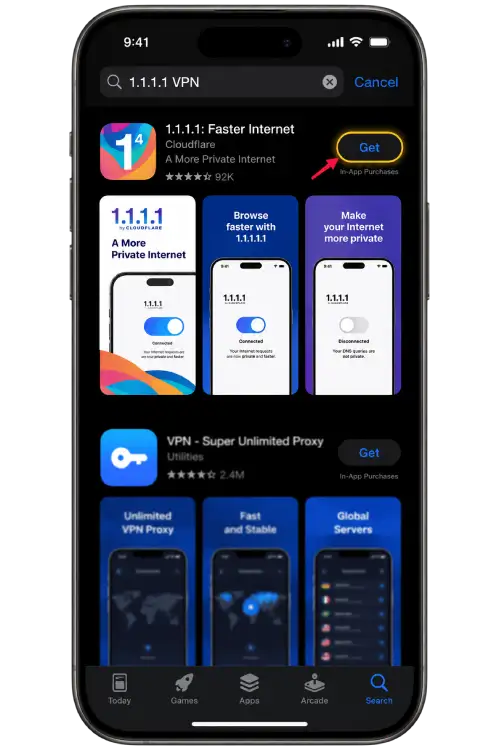
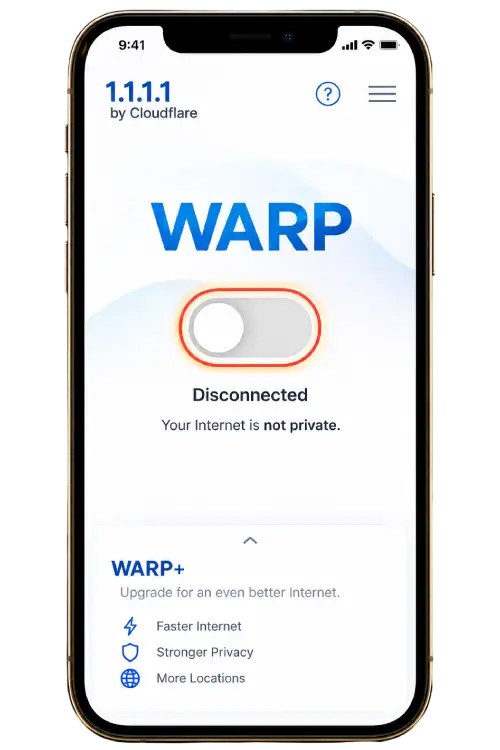
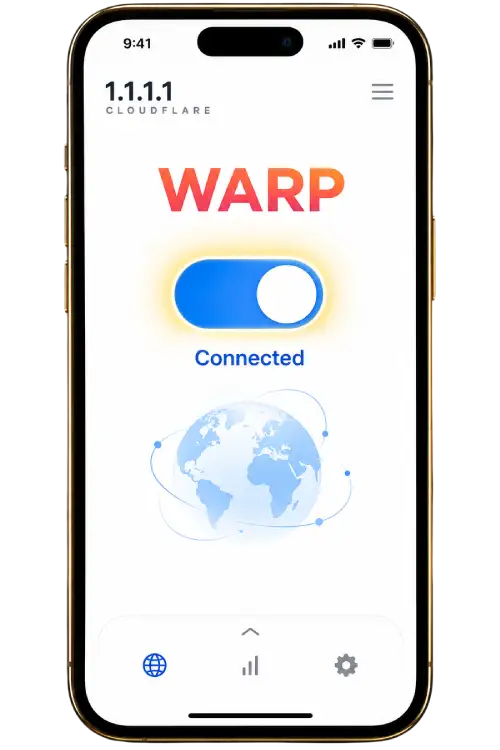
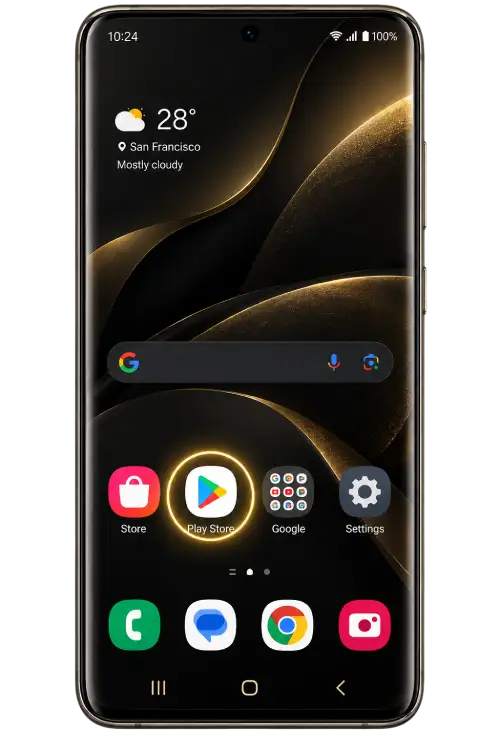
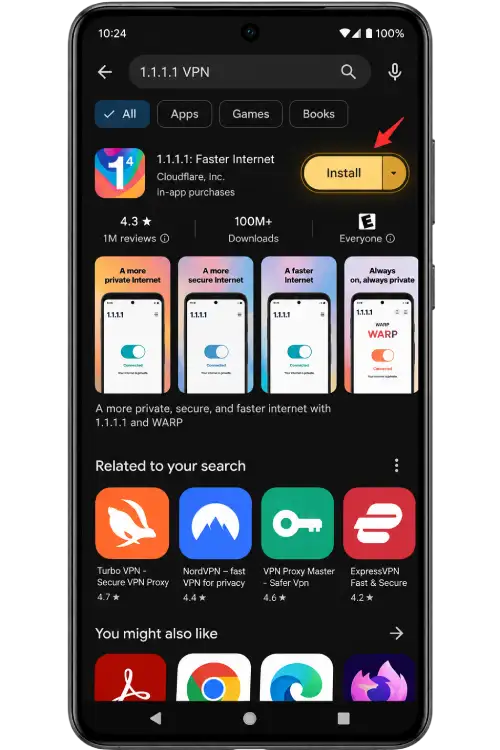
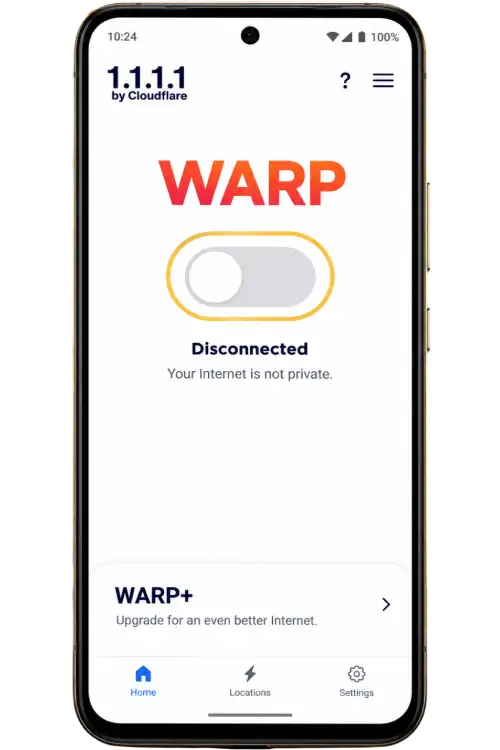
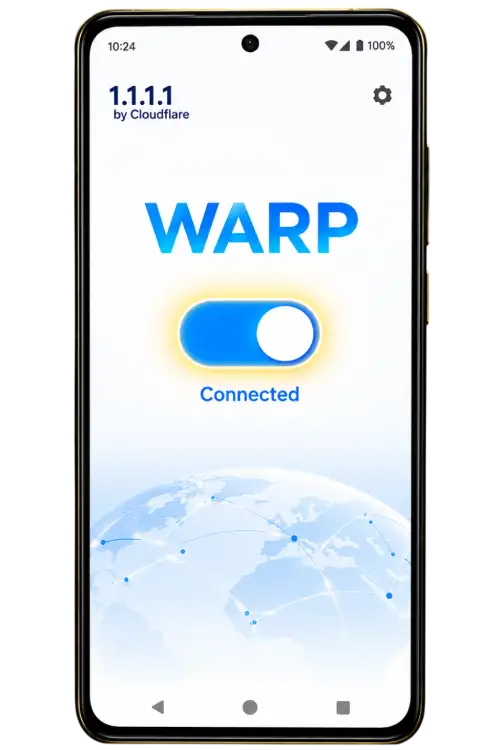
The VPN Tutorial opens a device-specific picture guide. Choose iPhone / iOS or Android and read the steps in order. The download control leads to the configured provider page. Review the application name, publisher and supported platform before installing anything. Screens may vary between application and operating-system versions.
- Open the relevant application store or provider page for your device.
- Confirm the application identity and publisher before starting the download.
- Read the setup explanation and any connection permission request.
- If you decide to connect, check the application's displayed status before retrying the browser.
VPN use is optional. It does not correct a password, verify account ownership or establish eligibility for another service. It also does not guarantee that a destination will open. Treat the connection tool as one setting to evaluate rather than a universal answer to every access problem.
If enabling a connection tool introduces a new problem, reverse that change and compare the result. Avoid enabling several overlapping connection tools without understanding how they interact. Follow the rules of your network and the destination service. Do not accept an unfamiliar device-management request simply because someone describes it as part of VPN setup.
Login and password problems
If the sign-in page opens but rejects your submission, begin with the account identifier. Read the field label and check whether the form requests a username, email address or telephone number. Review formatting, accidental spaces and any country-code selector. Do not assume the identifier used on another service applies here.
Check the selected keyboard language, capital letters and saved password entry. A password manager can choose the wrong account when several similar entries exist. Inspect the destination and identifier before overwriting a saved credential. If the form offers a password visibility control, use it only when the screen is private.
When you cannot remember the password, use the recovery option offered by the checked destination. Follow that process in one tab and keep any recovery link private. Do not send your password to a chat contact or ask another person to receive a verification code for you.
A temporary attempt limit calls for a pause, not faster retries. Follow any waiting instructions shown by the service. This website cannot determine a limit's duration or remove an account restriction. The Login guide provides more detailed preparation and recovery checks.
Registration and verification problems
For registration issues, identify whether the form rejected a field, verification did not complete or the final result is unclear. Read the message associated with the affected field. A required format or mismatched password should be corrected according to the displayed instruction, rather than by changing unrelated browser settings.
Use contact information you control. Check the contact hint before requesting another verification message. For email, review relevant folders. For a telephone number, confirm the requested format and whether the phone can receive messages. Wait for the stated resend period instead of submitting repeated requests in quick succession.
If several codes arrive, match the message to the current process. Earlier requests may no longer apply. Do not forward codes to a person claiming to complete registration on your behalf. A verification code belongs in the checked process you initiated, not in a public group or support conversation.
If an identifier is already in use, consider whether you have an existing account and review recovery options. Do not create repeated variations of the same registration to work around an unclear result. See the Registration guide for a fuller explanation of preparation, confirmation and contact-detail checks.
Application and installation help
Separate a failed download from a failed installation. A partial download may be caused by connection or storage problems, while installation can fail because of compatibility, package integrity or device policy. Record the exact system message. Do not rename an incomplete file to make it appear ready to install.
Check the source and publisher before retrying. An Android package is not an iPhone application, and a familiar icon does not verify a file. Read the requirements on the actual download page. If your device reports a security concern, stop and ask for clarification rather than disabling protections merely to finish installation.
If an installed application closes unexpectedly, note when it happens and what action immediately precedes it. Check the application and operating-system versions. Restarting can help establish whether an issue is temporary, but repeated reinstalls may delete local information without addressing the cause.
Before clearing application data or uninstalling, ensure you can sign in again and understand what will be removed. An unexpected package-signing conflict deserves investigation. The App and mobile guide explains download checks, permissions and update considerations in greater detail.
Sessions and account changes
A session may end after inactivity, a settings change or an action taken by the service. If you return to a login page, inspect its address again before entering details. Avoid keeping several sign-in forms open, since an old verification request can be confused with the current one.
Closing a tab or application does not necessarily sign out an account. Use the service's sign-out control when finished on a shared device. If the service offers session review, inspect it from a trusted device when you suspect unauthorised access. Clearing local history does not end sessions on other devices.
Contact-detail changes and account ownership questions must follow the actual service's verification process. This website cannot inspect private records or approve a change. Do not send sensitive documents to an unverified profile because it promises to speed up a recovery request. Ask where information should be submitted and why it is required.
Prepare a useful support report
A useful report gives enough context to reproduce or investigate the symptom without exposing credentials. State what you expected, what actually happened and the point where the behaviour changed. Use precise observations rather than conclusions such as an account being blocked when you have only observed a loading error.
- The destination domain or affected page, excluding private query tokens.
- The approximate date, time and time zone.
- The device type, operating system and browser or application version.
- The exact error wording and the action that produced it.
- Whether the issue occurs on Wi-Fi, mobile data or both.
- The checks already tried and the result after each one.
Keep the report in a clear sequence. For example, explain that the page opened, the form accepted the submission and the process stopped while waiting for verification. That sequence is more useful than several unrelated screenshots. Mention whether the symptom is consistent or intermittent and whether it affects one device or more than one.
If an earlier attempt produced a different message, include that distinction. Avoid presenting a screenshot from yesterday as the result of a new test today. Accurate timing helps separate an old problem from a changed condition. Save a private copy of the description so you can follow up without repeating every troubleshooting step from memory.
Share information safely
Review a screenshot before sending it. Remove passwords, verification codes, recovery links, private notifications and full contact details. Browser address bars may contain session or recovery tokens, so check them as well as the main page. Share the public domain and error wording when the complete URL is unnecessary.
A messaging channel may open a public group rather than a private conversation. Check where your message will appear before sending account information. The presence of a familiar profile image or name does not independently verify the recipient. If someone moves the conversation to another account, review that change before continuing.
Do not grant remote control of your device to resolve an ordinary access question. Remote access may reveal unrelated accounts, messages and stored information. Likewise, avoid screen sharing while a code or password is visible. A redacted error image and clear written report are safer ways to explain many technical symptoms.
Follow up with clear updates
Response times depend on the actual channel and its availability. A contact button does not establish continuous staffing or a guaranteed response period. Keep related messages together where possible, and avoid sending the same private information to several public profiles because an answer has not arrived immediately.
When following up, include the original reference if one was provided and explain what has changed. State whether the issue continues, whether a new message appears and whether any suggested check affected the result. Do not repeat a password reset or reinstall merely to show activity if it adds no useful information.
If the problem resolves, note which action preceded the improvement without assuming it proves a universal fix. A temporary connection issue may disappear independently. Keep only the records you need, and remove unnecessary screenshots containing personal details. For website scope and published information, read About PHMAYON888.
PHMAYON888 support questions
Where can I find customer support?
Published channels appear in Contact Options near the top of this page. Only configured destinations are displayed. Check the account, domain or group that opens before sending a message, and keep passwords and verification codes private.
Why are some contact buttons missing?
A channel appears only when a destination has been published. Missing buttons do not indicate a problem with your account. Use the available guides and the actual account service's assistance process rather than guessing contact usernames.
Can this website reset my password?
This website provides guidance and does not collect login credentials or reset private account records. Use the recovery process at the checked destination. Never send your password or recovery token through a support conversation.
Should I use a VPN for every loading error?
Start with the ordinary connection and browser checks. VPN use is optional and does not guarantee access. It does not resolve incorrect credentials or account eligibility questions. Review each change separately so you can assess its effect.
How quickly will a support message receive a reply?
Availability depends on the actual contact channel. This page does not promise a response time or continuous staffing. Provide a clear report and follow any instructions published by the channel you are using.
What should I send with an error screenshot?
Include the approximate time, destination domain, device, browser and steps that produced the error. Redact private information first. A screenshot alone may not explain whether the issue concerns loading, verification or an account action.
Does an unavailable route mean my account is restricted?
No account status can be inferred from an unpublished route slot or a loading failure alone. Read any account notice at the actual service and follow its assistance process for questions about restrictions or ownership.
What if a support profile asks for my verification code?
Do not share it through the conversation. Enter codes only in the checked process you initiated. Verify the contact through an independent published channel and stop if the request involves remote access or unfamiliar account actions.